


Sometimes the game you want to play is on your PC and the place you want to be is anywhere except your desk. An iPad makes that gap rather tempting: a screen big enough to get lost in a game, small enough to bring to the sofa and probably already within reach. Your Steam library can make the journey too, provided the computer stays part of the plan.
Yes, you can play Steam games on iPad using Valve's free Steam Link app. The game runs on a computer while the iPad receives its picture and sound and sends your controls back. That makes this a way to play games you already have somewhere more comfortable, with a few things worth sorting out before you settle in.
You need Steam Link and a computer running the game
Start with Steam Link on the App Store, published by Valve. It is separate from the ordinary Steam Mobile app, which handles things such as shopping, account protection and notifications. Having Steam on your iPad for Steam Guard does not mean you already have the app that streams your games.
The computer does the demanding work, so it needs to run the game properly before you ask it to stream anything. Steam Link supports a host running Windows, macOS or Linux, and the game must work on whichever one you use. A Windows game streaming from a Windows PC does not need an iPad edition, because the iPad is receiving the result rather than running that Windows software itself.
Check the App Store's current compatibility information for your iPad, then start with both devices on the same home network. The host needs to stay awake with Steam running throughout the session. If you only have an iPad and no computer to run the game, installing Steam Link alone will not provide one.
How to play Steam games on your iPad
Get the connection working with a familiar game before turning the evening into a hunt for something new. That way, you can tell whether a strange response comes from the streaming setup or controls you have not learned yet.
- Prepare the computer. Update Steam, sign into your account and make sure the game is installed and launches normally. You can check Remote Play in Steam's settings if streaming has previously been disabled.
- Open Steam Link on the iPad. Connect to the same home network, then follow the app's prompts to find and pair with your computer. Keep the computer within reach so you can complete any pairing confirmation.
- Set up your controls. Pair a compatible controller with the iPad or try Steam Link's touch controls. Check the layout before starting a game that expects lots of buttons or precise mouse input.
- Connect and launch a game. Follow the app's connection checks, open your library and try a few minutes of play before adjusting the picture or moving to another room.
Valve's Remote Play guide explains the connection between Steam Link and your host. Keep the game installed on that computer; this process does not download a version you can later launch on the iPad without it.
Give the connection a fair chance
A game can run beautifully at the desk and still feel awkward on the sofa if the connection struggles to carry it. Valve recommends connecting the host to your router with Ethernet and using a strong wireless connection for the iPad. Try somewhere near the router first, then see how the experience changes where you actually want to sit.
If the picture stutters, reduce the streaming quality before assuming the game is too demanding for the tablet. Network conditions and the host's performance both matter, which is why buying a newer iPad cannot fix every delay. Valve's streaming network advice is a useful next stop when the connection is getting in the way of playing.
Choose a game that suits the screen and controls
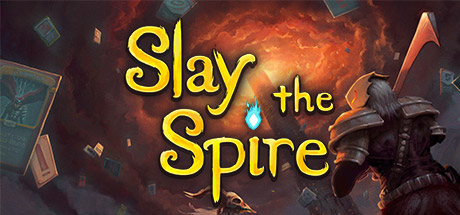
With the connection settled, you can finally get comfortable and let the games take over. Slay the Spire gives you time to consider a hand of cards, but the decision rarely stays as simple as playing the biggest attack. The deck you have built and the enemies waiting ahead keep changing what a sensible move looks like, drawing you into another fight without asking for quick reflexes. Check that its card text and your chosen controls feel comfortable on the stream before settling into a run.
A controller can make a different sort of evening appealing. In Portal 2, the pleasure comes from looking at a room until its pieces begin to make sense, then putting your solution into motion. You still need aiming and movement to feel responsive, so give the connection a proper try before trusting it with a more awkward jump.
If you would rather return to a familiar place, Stardew Valley can give the evening a gentler shape. Looking after the farm leads into plans for tomorrow, while a trip into town supplies a reason to stay a little longer. You can spend the session working towards a bigger farmhouse or get distracted by fishing, with tomorrow's plans waiting when you return.
Look for Remote Play on Tablet in a game's Steam store features when building that shortlist, then try something you own before buying specifically for the setup. A game you enjoy with a mouse may ask for a different approach through touch controls, and a few minutes of play will tell you whether the arrangement feels comfortable.
Find something in your own Steam library
Moving to the sofa does not make a large library any easier to choose from, especially when you want to play now rather than compare another dozen recommendations. VaultShuffle can import your public Steam library and help choose an owned game around your session, mood and goal. You can make that choice in the browser, then open the game through Steam Link.
Continue with Steam from the VaultShuffle homepage or enter your public Steam profile to bring in your collection, with your profile and game details set to public. VaultShuffle helps with the choice, while Steam Link handles the connection.
There is no iPad streaming filter, so if you use a device filter, match it to the host running the game. An iPad receiving a Windows PC's stream does not need the Mac filter just because it is made by Apple.
Once a game looks promising, check it on the host and give it a few minutes on the iPad. For more help narrowing the collection, our guide to choosing your next Steam game starts with the evening you want to have. Getting away from the desk should make room for that evening, rather than another hour spent browsing the store.